1. What Is a SQL Server Transaction Log Backup?
A transaction log backup contains a sequence of transaction log records from a SQL Server database. These records describe database transactions and modifications that occurred during the backup interval. SQL Server uses transaction log backups as part of its recovery process. A transaction log backup can help restore a database to a particular point in time when the required backup sequence is available.
Transaction log backups are relevant to databases using the:
- Full recovery model.
- Bulk-logged recovery model.
Under the Simple recovery model, regular transaction log backups are not supported. A full database backup must exist before the first transaction log backup can be created.
What is a TRN file?
.trn is a commonly used file extension for SQL Server transaction log backups. For example:
SalesDB_Full.bakSalesDB_Log_001.trnSalesDB_Log_002.trnSalesDB_Log_003.trn
SQL Server does not require or enforce these file extensions. They are naming conventions that help DBAs identify backup types. A TRN file is a backup file, not the same thing as the live database .ldf transaction log file.
2. How Does SQL Server Transaction Log Backup Work?
Every SQL Server database has a transaction log. When database modifications occur, SQL Server writes transaction log records that describe those changes. The log records are identified by Log Sequence Numbers (LSNs). An LSN provides a logical position within the transaction log. Transaction log backups capture a sequence of log records so that SQL Server can later restore and replay the changes.
A simplified workflow looks like this:
- Create a full database backup.
- Perform database transactions.
- Create a transaction log backup.
- Continue database activity.
- Create subsequent transaction log backups.
- Restore the required backup sequence when recovery is necessary.
For example:
| Backup | Description |
|---|---|
| Full backup | Initial database backup |
| Log backup 1 | First transaction log backup |
| Log backup 2 | Subsequent transaction log backup |
| Log backup 3 | Subsequent transaction log backup |
To restore the database to a later point, SQL Server applies the required backups in the correct order.
3. How to Create a SQL Server Transaction Log Backup
Before creating transaction log backups, verify the database recovery model.
SELECT
    name,
    recovery_model_desc
FROM sys.databases
WHERE name = 'SalesDB';
GO
For regular transaction log backups, the database must use the Full or Bulk-logged recovery model. For example, to configure Full recovery:
ALTER DATABASE SalesDB
SET RECOVERY FULL;
GO
A full database backup is required to establish the backup chain before the first transaction log backup. Create a full backup:
BACKUP DATABASE SalesDB
TO DISK = 'D:\SQLBackups\SalesDB_Full.bak'
WITH INIT, COMPRESSION, STATS = 10;
GO
Now create a transaction log backup:
BACKUP LOG SalesDB
TO DISK = 'D:\SQLBackups\SalesDB_Log_001.trn'
WITH INIT, COMPRESSION, STATS = 10;
GO
Subsequent transaction log backups can be created as required:
BACKUP LOG SalesDB
TO DISK = 'D:\SQLBackups\SalesDB_Log_002.trn'
WITH INIT, COMPRESSION, STATS = 10;
GO
In a production environment, schedule log backups according to your recovery point objectives and workload.
4. How to Inspect a TRN File Using SQL Server
SQL Server provides several RESTORE commands that help inspect backup files. These commands inspect backup metadata or verify backup readability. They do not display individual transaction log entries in a user-friendly grid.
Option 1: RESTORE HEADERONLY
Use RESTORE HEADERONLY to inspect the backup header.
RESTORE HEADERONLY
FROM DISK = 'D:\SQLBackups\SalesDB_Log_001.trn';
GO
The output provides backup metadata such as:
- Database name.
- Backup start date.
- Backup finish date.
- Backup type.
- Backup set information.
- First and last LSN.
- Checkpoint LSN.
- Database backup LSN.
- Recovery fork information.
This information helps determine which backup file you are examining and how it relates to other backups.
Option 2: RESTORE VERIFYONLY
You can use RESTORE VERIFYONLY to check whether a backup set is complete and readable.
RESTORE VERIFYONLY
FROM DISK = 'D:\SQLBackups\SalesDB_Log_001.trn';
GO
This command is useful for backup validation. However, it does not provide a complete guarantee that a backup can be restored successfully in every recovery scenario. A test restore is still the best way to validate your recovery process.
Option 3: RESTORE FILELISTONLY
RESTORE FILELISTONLY is primarily used to inspect the logical and physical files contained in database backups.
RESTORE FILELISTONLY
FROM DISK = 'D:\SQLBackups\SalesDB_Full.bak';
GO
This is useful when preparing a database restore to a different location. It is not a command for displaying individual transactions inside a TRN file.
5. How to Restore a Transaction Log Backup
Restoring a transaction log backup is different from inspecting it. A typical restore sequence requires:
- The appropriate full database backup.
- The latest applicable differential backup, if one is being used.
- All required subsequent transaction log backups.
- The correct restore order and an unbroken log sequence.
For example, restore the full database backup first:
RESTORE DATABASE SalesDB_Recovery
FROM DISK = 'D:\SQLBackups\SalesDB_Full.bak'
WITH
    MOVE 'SalesDB' TO 'D:\SQLData\SalesDB_Recovery.mdf',
    MOVE 'SalesDB_log' TO 'D:\SQLLogs\SalesDB_Recovery.ldf',
    NORECOVERY,
    REPLACE;
GO
Then restore the first transaction log backup:
RESTORE LOG SalesDB_Recovery
FROM DISK = 'D:\SQLBackups\SalesDB_Log_001.trn'
WITH NORECOVERY;
GO
Restore the next transaction log backup:
RESTORE LOG SalesDB_Recovery
FROM DISK = 'D:\SQLBackups\SalesDB_Log_002.trn'
WITH NORECOVERY;
GO
After applying all required log backups, bring the database online:
RESTORE DATABASE SalesDB_Recovery
WITH RECOVERY;
GOOnce you complete recovery, you cannot continue applying additional log backups to that restored database without starting another restore sequence.
6. How to Restore a Transaction Log Backup to a Specific Point in Time
One of the most valuable SQL Server recovery capabilities is point-in-time restoration. For example, suppose an unwanted DELETE occurred at approximately 2:30 PM. You may be able to restore the database to a time immediately before the unwanted operation, provided the required backup sequence and log information are available.
RESTORE LOG SalesDB_Recovery
FROM DISK = 'D:\SQLBackups\SalesDB_Log_002.trn'
WITH
    STOPAT = '2026-11-10T14:29:59',
    NORECOVERY;
GO
The STOPAT option specifies a recovery point within the applicable log backup sequence. The complete restore process may require multiple log backups, with the appropriate stop time applied to the relevant restore operation.
For production incidents, consider restoring to a separate database first. You can then compare the recovered data with the production database and extract the required records. This avoids immediately replacing the production database with an earlier state.
7. What Is a SQL Server Transaction Log Backup Chain?
A transaction log backup chain is a continuous sequence of transaction log backups required to restore a database to a later recovery point. The chain starts from an appropriate database backup and continues through subsequent log backups. For a database or partial database restore, the required log backup sequence must extend from the end of the restored data backup.
If a required log backup is missing, the sequence may be broken and you may not be able to restore to the intended recovery point. Consider this example:
| Backup | Status |
|---|---|
| Full backup | Available |
| Log backup 001 | Available |
| Log backup 002 | Available |
| Log backup 003 | Missing |
| Log backup 004 | Available |
The missing log backup can prevent restoring through the intended later recovery point. This is why regular backup monitoring and validation are essential.
8. How to Analyze TRN Files Using DBLense Log Reader
SQL Server's RESTORE commands are useful for inspecting backup metadata and performing database recovery. However, they do not provide a graphical interface for browsing individual transaction log operations.
DBLense Log Reader provides a graphical transaction log investigation workflow for supported sources, including selected .trn transaction log backup files. Support depends on file compatibility and available log information; not every TRN file can necessarily be analyzed or fully decoded.
Step 1: Select the transaction log backup
Open DBLense Log Reader. Choose the appropriate offline log or backup source and select the supported transaction log backup file. For example: SalesDB_Log_001.trn. Load the file for analysis.

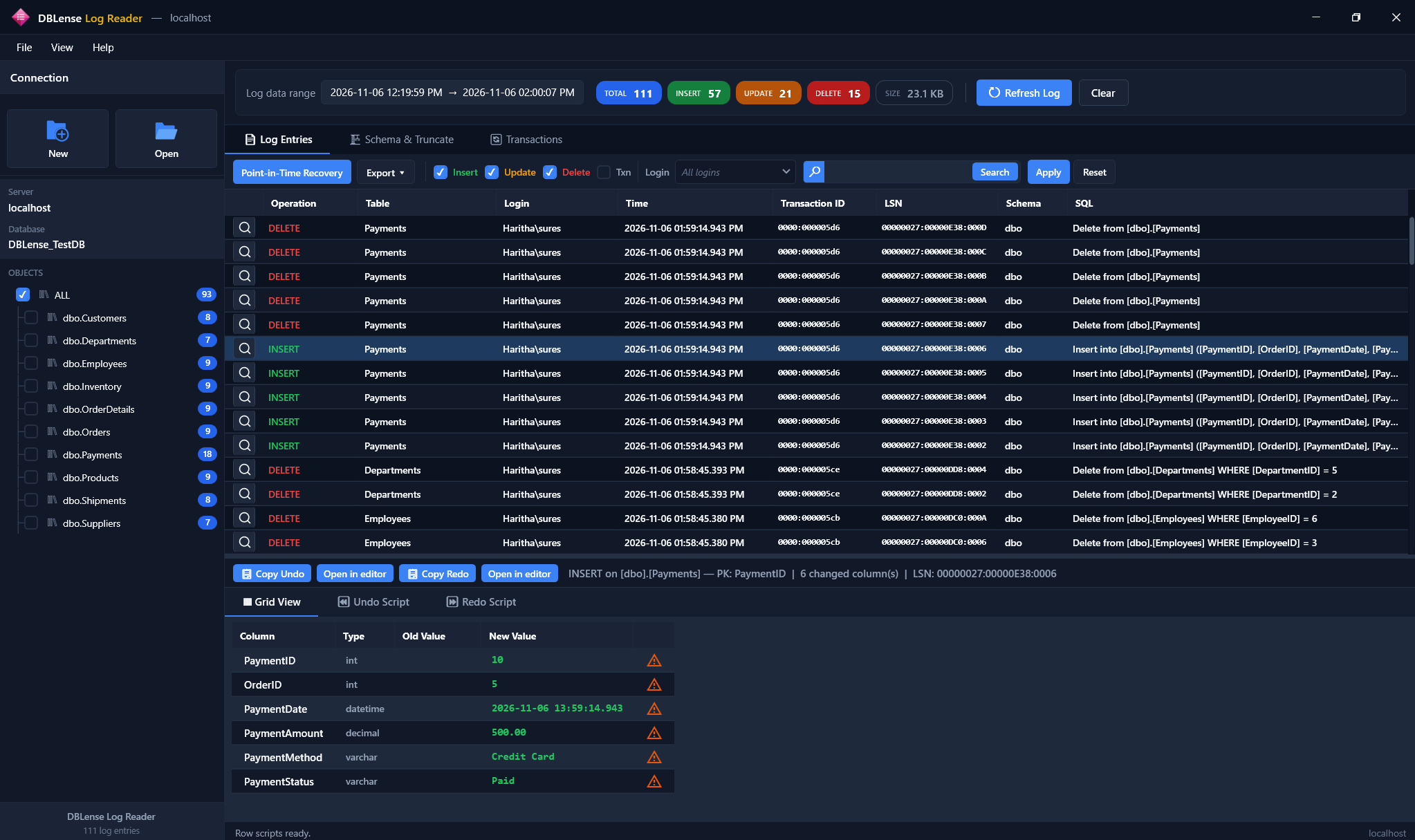
Step 2: Browse available log entries
Open the Log Entries view. Review available transaction log information in the application grid. Depending on the available log records, investigate:
- INSERT operations.
- UPDATE operations.
- DELETE operations.
- Transaction identifiers.
- LSN information.
- Timestamps.
- Database objects.
- Available login information.
Step 3: Filter the transaction log activity
Use the available filters to narrow the investigation. For example:
- Select DELETE operations.
- Filter by table.
- Narrow the time range.
- Search for a transaction ID.
- Review activity associated with an available login.
This makes it easier to focus on the operations relevant to an incident.
Step 4: Inspect transactions and modified values
Use the transaction and grid views to investigate available transaction details. For supported DML operations, inspect old and new column values where the required information is available. This can help establish which records were affected by database modifications.
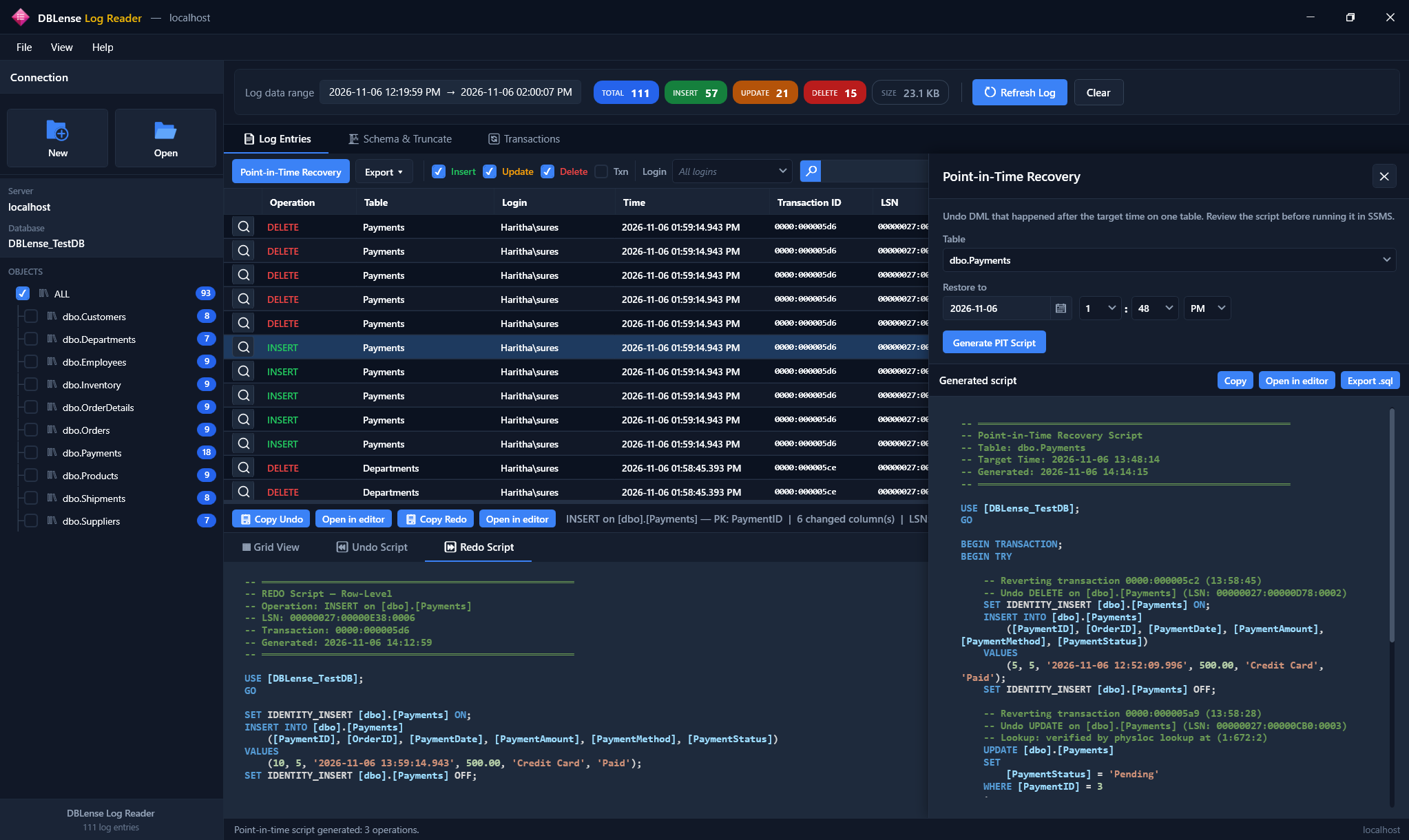
Step 5: Generate recovery scripts
For supported operations, generate Undo or Redo T-SQL scripts. Review the generated SQL before executing it. Validate the results in a test environment and consider subsequent database activity before applying recovery changes to production.
DBLense Log Reader prepares scripts for review; it does not automatically execute them.
9. Transaction Log Backup vs. LDF File
DBAs often confuse transaction log backup files with live transaction log files. They are related, but they serve different purposes.
| LDF file | TRN file |
|---|---|
| Live database transaction log file | Transaction log backup file |
| Maintained by SQL Server during database activity | Created using BACKUP LOG |
| Used for normal transaction logging and recovery | Used as part of a database restore sequence |
| Changes continuously as transactions occur | Represents the log records included in a backup |
| Associated with the database's physical log file | Stored as a backup set on a backup device |
An LDF file and a TRN file should not be treated as interchangeable. For live log investigation, see How to Read SQL Server LDF Files.
10. SQL Server Transaction Log Backup Best Practices
Schedule regular log backups
Choose a backup frequency that meets your recovery point objectives.
Monitor backup failures
Monitor SQL Server Agent jobs, backup history, and backup storage.
Preserve the log backup chain
Keep all required backup files and avoid deleting backups that may be needed for recovery.
Store backups separately
Keep backups in storage separate from the primary database files whenever possible.
Validate backups
Use backup verification and periodic test restores.
Document recovery procedures
Maintain clear instructions for restoring full, differential, and transaction log backups.
Protect backup files
Apply appropriate access controls and encryption where required.
11. Conclusion
SQL Server transaction log backups are essential for database recovery, point-in-time restoration, and disaster recovery planning. The .trn file contains transaction log information that SQL Server uses to roll a restored database forward.
Commands such as RESTORE HEADERONLY, RESTORE VERIFYONLY, and RESTORE LOG help DBAs inspect backup metadata, validate backup files, and perform recovery operations. However, when an investigation requires browsing individual transaction log operations, a graphical analysis tool can make the process easier.
DBLense Log Reader helps SQL Server professionals analyze supported transaction log backup sources, investigate available INSERT, UPDATE, and DELETE operations, inspect transaction details, and generate recovery scripts for review.
Analyze SQL Server Transaction Log Backups with DBLense Log Reader
Investigate supported .trn sources with filtering, transaction views, and reviewable recovery scripts.
Frequently Asked Questions
What is a TRN file in SQL Server?
A TRN file is a commonly used file extension for a SQL Server transaction log backup. It contains transaction log records captured during a backup operation.
How can I read a SQL Server TRN file?
You can use SQL Server RESTORE commands to inspect backup metadata and restore log backups. Specialized transaction log analysis tools may also support browsing available transaction log information in selected TRN files.
Can I open a TRN file in SSMS?
SQL Server Management Studio can be used to execute RESTORE commands against a TRN file. However, it does not provide a standard graphical transaction-by-transaction viewer for the backup file.
What is the difference between an LDF and a TRN file?
An LDF file is the live database transaction log file. A TRN file is a backup containing a sequence of transaction log records.
Can I restore a TRN file without a full backup?
A transaction log backup normally requires a compatible database backup and the appropriate preceding restore sequence. It is not generally a standalone database restore.
How do I check the contents of a TRN backup?
Use RESTORE HEADERONLY to inspect its backup header. Use RESTORE VERIFYONLY to check backup readability. Neither command displays all individual transaction operations in a user-friendly format.
Can I recover a database to a specific time using TRN files?
Yes, when the required full or differential backup and continuous transaction log backup sequence are available. SQL Server supports point-in-time recovery using the STOPAT option.
Does DBLense Log Reader replace SQL Server RESTORE commands?
No. DBLense Log Reader is designed for transaction log investigation and recovery-script generation for supported sources. SQL Server's documented BACKUP and RESTORE commands remain the standard database backup and recovery mechanisms.
Microsoft References
- SQL Server Transaction Log Architecture and Management Guide
- Transaction Log Backups (SQL Server)
- Back Up a Transaction Log (SQL Server)
- Apply Transaction Log Backups (SQL Server)
- RESTORE (Transact-SQL)
← All articles · Related: Read LDF files · Related: Find who deleted a record · Log Reader docs