Interface & Features — Script Runner
Walk through the main screens, tabs, and controls you will use day to day.
Server Group Management
Creating Groups
Groups are organizational containers. Create groups like "Production Servers", "Staging", "Azure SQL", or "DR Cluster". All group and server changes are saved automatically.
Adding Servers
| Field | Description |
|---|---|
| Server Name | Full server/instance name (e.g., SQLPROD01, myserver.database.windows.net) |
| Display Name | Optional short label for long Azure MI names. Full name shown as tooltip. |
| Authentication | Choose from four modes (see below) |
| Login / Password | Required for SQL and Entra ID auth modes |
Click Test Connection to verify connectivity before saving.
Selection Controls
- Checkboxes on groups, servers, and individual databases control which targets are included in execution.
- Nothing is checked by default — you must explicitly select targets before running.
- Parent gating: a server checkbox is enabled only when its group is checked; a database checkbox is enabled only when its server is checked. This prevents accidentally targeting children under an unchecked parent.
- Checking a group cascades to its servers (and loaded databases, respecting Include DBs scope).
- Use All / None in the Server Groups header to check or clear the entire tree quickly.
 Tip: Include DBs is not the same as selecting servers. Scope only decides which databases get auto-checked under servers you already selected.
Include Databases (Scope)
The Include DBs dropdown above the tree controls which databases are auto-checked when a server (or group) is selected. It does not select servers by itself.
| Scope | Auto-checks |
|---|---|
| User databases (default) | Only user databases (excludes master, model, msdb, tempdb) |
| All databases | Every online database on the server |
| System databases | Only system databases |
| master only | Only the master database |
The ⚙ button opens Include / Exclude name lists (comma- or semicolon-separated). Include names are always selected even if the scope would hide them; exclude names are always deselected.
Tip: If databases haven't been expanded yet for a server, execution auto-queries databases and applies the active scope (or falls back to master if enumeration fails).SQL Templates
Save and reuse common scripts the way SSMS Template Explorer works — without leaving Script Runner.
- Click Templates (next to + in the session tab strip) to open a right-side slide-out panel.
- Templates are organized into parent groups (for example Security, Maintenance, General). Create, rename, or delete groups from the panel.
- Click a template to open it in a new session with the SQL loaded.
- Use Save Template on the editor toolbar (or when creating from the panel) to save the current script. Choose a name, optional description, and parent group.
- Edit or delete templates from the panel.
Templates are stored locally in %LOCALAPPDATA%\DBLenseScriptRunner\templates.json.

Script Editor
Type or paste SQL directly into the built-in editor with:
- Syntax highlighting (keywords, strings, comments, numbers) with separate dark and light palettes
- Line numbers — toggle from the toolbar; the setting is remembered
- Configurable font size (10–20pt via Settings)
- Execute selected text only (highlight a portion and press F5)
- Format (Ctrl+Shift+F) — uppercases keywords, places SELECT/FROM/WHERE/JOIN on new lines, indents AND/OR, and leaves strings, comments, and bracketed identifiers untouched
- Validate (F6) — compile-checks the script without executing (
SET NOEXEC ON) - Save Template — store the current script (or just the selection) for reuse
- Find / Replace (Ctrl+F) — match highlight with Prev / Next, Match case, and Whole word
Note: In a Script Folder workspace, Format rewrites the .sql file on disk.
Script Folder Execution
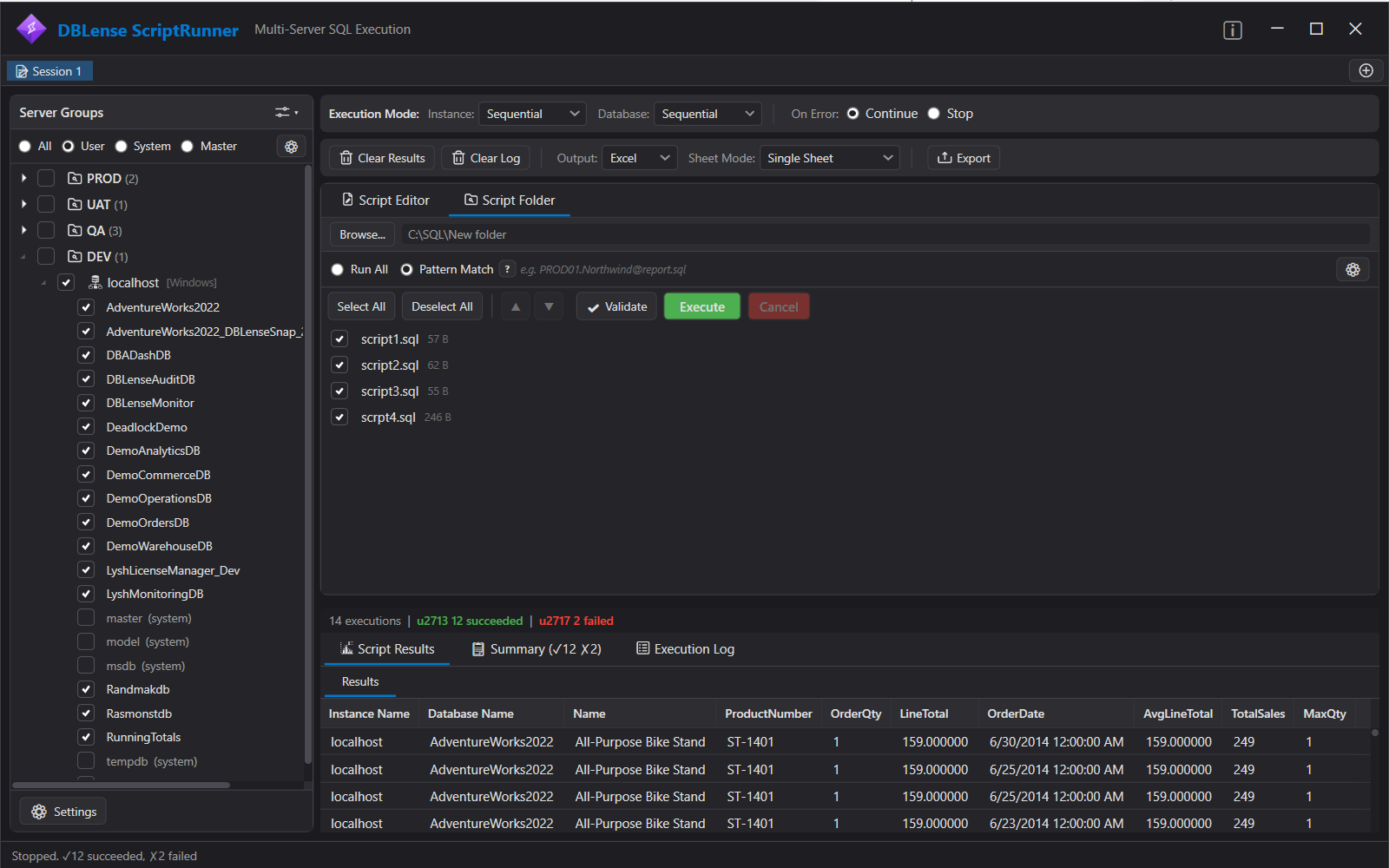
Run multiple .sql files from a folder in a single batch:
- Switch to the Script Folder tab
- Click Browse... and select a folder
- All
.sqlfiles are listed with checkboxes, filename, size, and routing info - Use Select All / Deselect All to toggle; reorder with ▲/▼ buttons
- Click Execute or Validate
Scripts execute in the order shown (alphabetical by default, reorderable). Results are grouped per-script in separate tabs.
Pattern Match Routing
Use Run All (default) to send every selected script to every selected target, or switch to Pattern Match to route scripts to specific servers/databases.
Filename routing
Format (default separator --):
scriptname@server--database.sql| Example Filename | Routing |
|---|---|
report@PROD01--Northwind.sql | Runs only on PROD01 / Northwind |
cleanup@PROD01.sql | Runs on PROD01, all databases |
index_rebuild@--SalesDB.sql | Runs on all servers, SalesDB only |
report.sql | In Pattern Match mode, skipped (no routing) |
Server matching supports exact Server Name, exact Display Name, or prefix match (for example kedprod23 matches kedprod23....database.windows.net).
Change the server/database separator in Routing Settings (⚙). Allowed examples: --, _, ~, ## (must be a valid Windows filename character sequence).
Comment directive
Optionally enable Use -- @target: comment directive so a directive in the first 10 lines of the script overrides filename routing:
-- @target: PROD01/Northwind
-- @target: kedprod23.abc.database.windows.net/SalesDB
-- @target: PROD01/*          (all databases on PROD01)
-- @target: */master          (master on all servers)
-- @target: comment override)Script Validation (SET NOEXEC ON)
Click Validate to compile-check scripts without executing them. This catches:
- Syntax errors
- Invalid object names (tables, columns, procedures)
- Type mismatches and schema errors
Validation runs against every selected target, not just the first one. This matters: a script can compile cleanly on one server and still fail on another that is missing a column, an index, or a stored procedure. Targets are checked a few at a time so a wide fleet stays responsive.
Results appear in a dialog listing the script, server, database, line number, error number, severity, and message. The Server and Database columns appear only when more than one target was checked.
Tip: Always validate before running scripts on production — especially migration scripts in folder mode. Because each target needs its own connection, Script Runner asks for confirmation before validating against more than 20 targets.
SET NOEXEC ON (no data changes)Execution Modes
The execution options bar at the top controls how scripts are dispatched:
Instance Mode
| Mode | Behavior | Best For |
|---|---|---|
| Sequential (default) | One server at a time, in order | Data-modifying scripts, cautious rollouts |
| Parallel | All selected servers concurrently | Read-only queries across many servers |
Database Mode
| Mode | Behavior | Best For |
|---|---|---|
| Sequential (default) | One database at a time per server | Safe default for all scenarios |
| Batched | N databases concurrently per wave (configurable batch size) | Balanced speed & resource control |
Error Handling & Resilience
| Mode | Behavior |
|---|---|
| Continue on Error (default) | Proceeds through all targets, logs failures |
| Stop on Error | Halts remaining execution after first failure |
Per-target SQL failures are captured in results and the execution log — they do not crash the application. Unexpected UI or background faults are caught globally, logged under CrashLogs, and shown in a dialog so the app can keep running.
GO Batch Splitting
- Scripts are split on standalone
GOlines (case-insensitive) - GO with repeat count:
GO 5runs the preceding batch 5 times GOinside string literals, block comments, and line comments is correctly ignored- False positives like
GOTOorGOPHERare not treated as separators - Empty batches are automatically skipped
- Each batch has a 300-second command timeout
Results & Execution Log
Script Results Tab
Results are organized the way SSMS organizes them: one tab per script, and within each tab, one grid per result set. A script containing three SELECT statements produces three grids, each merged across every target you ran against.
Two columns are auto-prepended to every row so you always know the origin:
- Instance Name — the server the row came from
- Database Name — the database it was executed against
Each grid can be collapsed to a header strip, so you can focus on one result set without losing the others; expanded grids share the remaining space evenly. Columns sort by clicking headers and can be resized.
Search & filter
Every grid has an always-visible search box. Typing filters rows across all columns at once and shows a live "N of M rows" counter. This is the fastest way to find the one database in a fleet-wide result that returned an unexpected value.
Data type fidelity
Script Runner maps SQL types deliberately rather than relying on defaults:
intandbigintboth widen to 64-bit, so summed DMV counters never overflow mid-gridbinary,varbinary,image,timestamp, androwversionrender as SSMS-style hex (0x…), truncated at 512 bytes- Decimal, date, time, and GUID types keep their native form for correct sorting and export
Charting Results
Any result set can be switched from grid to chart view without exporting to Excel first — useful for spotting the outlier server at a glance.
| Control | Options |
|---|---|
| Chart type | Column, Bar, Line, Area, Pie |
| Data direction | Vertical or Horizontal, with an option to use the first column as labels |
| Columns to chart | Checkbox list of the numeric columns, with All / None |
| Legend position | Top, Bottom, Left, Right, or Hidden |
| Axes | X and Y axis labels, plus Y minimum and maximum |
| Output | Copy as Image to the clipboard, or Save as Image to PNG |
Charts adapt to the active theme. To stay readable, they cap at 40 categories and 12 series; pie charts show the 12 largest slices and group the remainder as Other.

Execution Summary & Log
Execution Summary Tab
| Column | Description |
|---|---|
| Status | ✓ Success (green) or ✗ Failed (red) |
| Script | Script filename (folder mode) |
| Group / Server / Database | Target details |
| Rows | Rows returned or affected |
| Duration | Execution time per target |
| Error | Error message (if failed) |
Failed rows are highlighted in red. Filter by All Results, Success Only, or Errors Only using the dropdown. When a run covered more than one script, a per-script pass/fail breakdown (for example ✓ 01_AddColumn.sql: 12/12) appears above the grid.

Execution Log Tab
Timestamped, auto-scrolling log showing every action: script loading, per-target success/failure, cancellation, and final summary. Includes start / success / error / stop markers. PRINT and RAISERROR info messages from SQL Server are captured and shown in the log.

Exporting Results
Excel Export
- Professional formatting: dark blue headers, alternating row shading, auto-sized columns
- Color-coded status (green = success, red = failure)
- Sheet modes: Single Sheet, Sheet Per Group, Sheet Per Server, Sheet Per Database, Sheet Per Script
- Choose what to include: Results, Summary, Execution Log
When a script returns multiple result sets, each one gets its own sheet suffixed - Result N. An Execution Summary sheet is always placed first.
CSV Export
UTF-8 CSV with proper quote, comma, and newline escaping. Sectioned as --- Result Set N ---, then --- Execution Summary ---, then --- Execution Log ---.
JSON Export
A structured document for downstream tooling, containing exportedAt, executionCount, results (each with a row count and its rows), summary, and log. Dates are ISO-8601 and binary values are Base64.
A dialog before every export lets you choose what to include — Execution Results and Execution Summary are on by default, Execution Log is off.
Sessions & Script Workspaces
Run multiple independent execution sessions simultaneously. Each session has its own:
- Server/database selection (independent checkboxes)
- Script content or folder path
- Include DBs scope and include/exclude lists
- Execution mode and error handling settings
- Results, summary, and log
Click + in the session tabs (or press Ctrl+T) to add a new session. New sessions inherit settings from the active session, and any server or group you add syncs into every open session. Use Templates next to + to open a template in a new session.
Within a session you can also open several script workspaces, each either a SQL editor (Ctrl+N) or a script folder (Ctrl+O). Folder workspaces are titled from the folder name automatically.
Tip: Use separate sessions to keep a long-running production audit from interfering with ad-hoc query work.Project Files
A project (.dbsrproj) saves an entire session to a single file, so a run can be repeated, reviewed, version-controlled, or handed to a colleague. The four buttons sit in the title bar: new, open, save, and save as.
| Saved in a project | Details |
|---|---|
| Every workspace | Editor scripts are stored inline. Folder workspaces store the folder path, the run mode, the routing separator, which files were checked, and the order you arranged them in. |
| Targets | The groups, servers, and individual databases you had checked. |
| Database scope | The scope filter plus the include and exclude lists. |
| Execution options | Instance mode, database mode, batch size, error handling, output format, and Excel sheet mode. |
 No credentials, ever. Passwords are deliberately excluded. Servers are referenced by group name and server name only, and are resolved against the registrations on whichever machine opens the project — so a project is safe to commit to source control or send by email.
Opening a project
Ctrl+Shift+O loads a project into a new session tab, so opening one never disturbs work you already have in flight. Servers that had an explicit database selection are reconnected so their checkboxes come back exactly as saved.
If the project references something the current machine doesn't have — an unregistered server, a script folder that has moved, a file that was deleted — the project still opens and a summary lists what couldn't be resolved.
Sharing projects alongside your scripts
When you save a project into a folder that contains (or sits above) your script folders, those paths are stored relative to the project file. Commit the .dbsrproj next to your SQL in the same repository and it opens correctly on any machine with no path fixing. Script folders elsewhere on disk keep their absolute path.
Saving
Ctrl+S saves back to the file the session came from, prompting for a location the first time; Ctrl+Shift+S always prompts. Saving under a new name renames the session tab to match, and tabs backed by a project file show a folder icon instead of the notepad icon.
Projects are plain, indented JSON, so a change to which servers a release targets shows up as a readable diff in a pull request.
Keyboard Shortcuts
| Shortcut | Action |
|---|---|
| F5 | Execute against all selected targets |
| Shift + F5 | Cancel execution |
| F6 | Validate scripts against all selected targets |
| Ctrl + Shift + F | Format SQL |
| Ctrl + Shift + E | Export results |
| Ctrl + Shift + R | Clear results |
| Ctrl + T | New session tab |
| Ctrl + W | Close current session tab |
| Ctrl + N | New script editor workspace |
| Ctrl + O | Add a script folder workspace |
| Ctrl + Shift + L | Show / hide the templates panel |
| Ctrl + S | Save the current session as a project |
| Ctrl + Shift + S | Save project as… |
| Ctrl + Shift + O | Open a project |
| Ctrl + Shift + N | New project (empty session tab) |
Ctrl+E, Ctrl+L, Ctrl+R, and Ctrl+J are deliberately left unassigned — the SQL editor reserves them for paragraph alignment.
Themes & UI
- Dark / Light theme — toggle from the title-bar sun/moon button, or choose Dark/Light in Settings. Preference is saved.
- Fluent-style chrome aligned with other DBLense desktop tools (custom title bar, branded ScriptRunner accent).

Import / Export Server Registrations
Share your server group configuration with team members via Settings → Server Registrations:
- Export — Saves all groups and server names to a portable JSON file. No credentials are included.
- Import — Load a JSON file and choose to Merge with existing registrations or Replace all. Credentials will need to be configured after import.
Tip: Place the exported JSON on a shared network drive so your entire DBA team uses the same server list.